How to Set Up Your Qerios Profile (Name, Bio, Avatar and Link)
A step-by-step guide to setting up a Qerios profile that gets good questions: choosing a username, writing a 160-character bio, picking an avatar and sharing your Ask link.
Your profile is the page strangers and friends land on when they open your Ask link. A few minutes spent on it changes the kind of questions you receive: a clear profile attracts thoughtful questions, an empty one attracts "hi" and silence. This guide walks through the pieces you control on Qerios and how to choose each one.
Pick a username you will not regret
Your username becomes part of your link, so choose it as if it will be printed on a card. Short and easy to say aloud beats clever. Avoid birth years, phone numbers and anything that reveals where you live or study, because the username is public even if your account is private. If you plan to share the link on Instagram or in a class group, check how it looks when typed in lowercase with nothing around it.
Write a bio that invites questions
The bio field is limited to 160 characters, which is enough for one line about you and one line telling people what to ask. Compare two bios:
- "Student. Cairo. Gamer." tells visitors nothing they can react to.
- "Medical student who loves football and bad puns. Ask me about study tips or the best street food." gives people three easy places to start.
The bio also supports @mentions, #hashtags and links, so you can point to a friend's profile or tag a topic you like answering. Keep private details out of it: it is visible to anyone who opens your profile, including on a private account.
Choose an avatar that fits how you want to be seen
A photo of your face is the most personal option, an illustration or a favourite object is the safest. There is no rule except this one: do not use a picture that shows a school logo, a street sign, a licence plate or anything else that tells a stranger where to find you. If you are unsure, use an avatar you could comfortably show to your whole family.
Decide who can see your answers
Qerios lets you keep your account public or make it private. On a private account, your answers, replies and sketches are visible only to you and followers you approve, while everyone else sees your name, photo, bio and counts. Questions can still reach you either way. If you are not sure which fits you, read the privacy settings checklist before deciding.
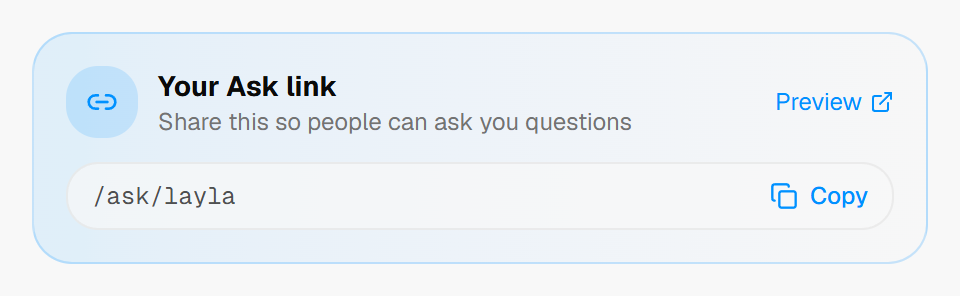 Your Ask link card, ready to copy and share.
Share your Ask link where your audience already is
Once the profile looks the way you want, copy your Ask link and put it somewhere people will actually see it: your Instagram bio, a story, a class group, a pinned message. The guide to adding an Ask me link to your Instagram bio covers the details, and how to grow your profile on Qerios covers what to do after the first few questions arrive.
Answer your first three questions quickly
A profile with answers on it looks alive. Visitors decide whether to ask something in the first few seconds, and a handful of answers shows them what kind of reply to expect. Answer the first questions that come in even if they are simple.
The short version
- Pick a short username that reveals nothing about where you live or study.
- Use the 160-character bio to say who you are and what people can ask.
- Choose an avatar that is safe to be public.
- Decide between a public and a private account before you share the link.
- Answer your first few questions soon so the profile looks active.